Nextcloud 是一款自由 (開源) 的類 Dropbox 軟件,由 ownCloud 分支演化形成。它使用 PHP 和 Javascript 編寫,支持多種數(shù)據(jù)庫系統(tǒng),比如 MySQL/MariaDB、PostgreSQL、Oracle 數(shù)據(jù)庫和 SQLite。它可以使你的桌面系統(tǒng)和云服務(wù)器中的文件保持同步,Nextcloud 為 Windows、Linux、Mac、安卓以及蘋果手機都提供了客戶端支持。Nextcloud 并非只是 Dropbox 的克隆,它還提供了很多附加特性,如日歷、聯(lián)系人、計劃任務(wù)以及流媒體 Ampache。
在這篇文章中,我將向你展示如何在 CentOS 7 服務(wù)器中安裝和配置最新版本的 Nextcloud 10。我會通過 Nginx 和 PHP7-FPM 來運行 Nextcloud,同時使用 MariaDB 做為數(shù)據(jù)庫系統(tǒng)。
先決條件
步驟 1 - 在 CentOS 7 中安裝 Nginx 和 PHP7-FPM
在開始安裝 Nginx 和 php7-fpm 之前,我們還學要先添加 EPEL 包的倉庫源。使用如下命令:
yum -y install epel-release
現(xiàn)在開始從 EPEL 倉庫來安裝 Nginx:
yum -y install nginx
然后我們還需要為 php7-fpm 添加另外一個倉庫。互聯(lián)網(wǎng)中有很個遠程倉庫提供了 PHP 7 系列包,我在這里使用的是 webtatic。
添加 PHP7-FPM webtatic 倉庫:
rpm -Uvh https://mirror.webtatic.com/yum/el7/webtatic-release.rpm
然后就是安裝 PHP7-FPM 以及 Nextcloud 需要的一些包。
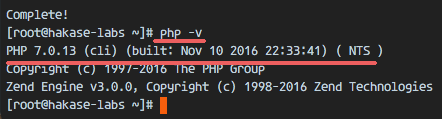
最后,從服務(wù)器終端里查看 PHP 的版本號,以便驗證 PHP 是否正確安裝。
php -v
步驟 2 - 配置 PHP7-FPM
在這一個步驟中,我們將配置 php-fpm 與 Nginx 協(xié)同運行。Php7-fpm 將使用 nginx 用戶來運行,并監(jiān)聽 9000 端口。
使用 vim 編輯默認的 php7-fpm 配置文件。
vim /etc/php-fpm.d/www.conf
在第 8 行和第 10行,user 和 group 賦值為 nginx。
user = nginxgroup = nginx
在第 22 行,確保 php-fpm 運行在指定端口。
listen = 127.0.0.1:9000
取消第 366-370 行的注釋,啟用 php-fpm 的系統(tǒng)環(huán)境變量。
env[HOSTNAME] = $HOSTNAMEenv[PATH] = /usr/local/bin:/usr/bin:/binenv[TMP] = /tmpenv[TMPDIR] = /tmpenv[TEMP] = /tmp
保存文件并退出 vim 編輯器。
下一步,就是在 /var/lib/ 目錄下創(chuàng)建一個新的文件夾 session,并將其擁有者變更為 nginx 用戶。
mkdir -p /var/lib/php/sessionchown nginx:nginx -R /var/lib/php/session/
然后啟動 php-fpm 和 Nginx,并且將它們設(shè)置為隨開機啟動的服務(wù)。
sudo systemctl start php-fpmsudo systemctl start nginxsudo systemctl enable php-fpmsudo systemctl enable nginx

PHP7-FPM 配置完成
步驟 3 - 安裝和配置 MariaDB
我這里使用 MariaDB 作為 Nextcloud 的數(shù)據(jù)庫。可以直接使用 yum 命令從 CentOS 默認遠程倉庫中安裝 mariadb-server 包。
yum -y install mariadb mariadb-server
啟動 MariaDB,并將其添加到隨系統(tǒng)啟動的服務(wù)中去。
systemctl start mariadbsystemctl enable mariadb
現(xiàn)在開始配置 MariaDB 的 root 用戶密碼。
mysql_secure_installation
鍵入 Y ,然后設(shè)置 MariaDB 的 root 密碼。
Set root password? [Y/n] YNew password:Re-enter new password:Remove anonymous users? [Y/n] YDisallow root login remotely? [Y/n] YRemove test database and access to it? [Y/n] YReload privilege tables now? [Y/n] Y
這樣就設(shè)置好了密碼,現(xiàn)在登錄到 mysql shell 并為 Nextcloud 創(chuàng)建一個新的數(shù)據(jù)庫和用戶。這里我創(chuàng)建名為 nextcloud_db 的數(shù)據(jù)庫以及名為 nextclouduser 的用戶,用戶密碼為 nextclouduser@ 。當然了,要給你自己的系統(tǒng)選用一個更安全的密碼。
mysql -u root -p
輸入 MariaDB 的 root 密碼,即可登錄 mysql shell。
輸入以下 mysql 查詢語句來創(chuàng)建新的數(shù)據(jù)庫和用戶。
create database nextcloud_db;create user nextclouduser@localhost identified by 'nextclouduser@';grant all privileges on nextcloud_db.* to nextclouduser@localhost identified by 'nextclouduser@';flush privileges;

nextcloud_db 數(shù)據(jù)庫和 nextclouduser 數(shù)據(jù)庫用戶創(chuàng)建完成
步驟 4 - 為 Nextcloud 生成一個自簽名 SSL 證書
在教程中,我會讓客戶端以 https 連接來運行 Nextcloud。你可以使用諸如 let's encrypt 等免費 SSL 證書,或者是自己創(chuàng)建自簽名 (self signed) SSL 證書。這里我使用 OpenSSL 來創(chuàng)建自己的自簽名 SSL 證書。
為 SSL 文件創(chuàng)建新目錄:
mkdir -p /etc/nginx/cert/
如下,使用 openssl 生成一個新的 SSL 證書。
最后使用 chmod 命令將所有證書文件的權(quán)限設(shè)置為 600。
chmod 700 /etc/nginx/certchmod 600 /etc/nginx/cert/*

步驟 5 - 下載和安裝 Nextcloud
我直接使用 wget 命令下載 Nextcloud 到服務(wù)器上,因此需要先行安裝 wget。此外,還需要安裝 unzip 來進行解壓。使用 yum 命令來安裝這兩個程序。
yum -y install wget unzip
先進入 /tmp 目錄,然后使用 wget 從官網(wǎng)下載最新的 Nextcloud 10。
cd /tmpwget https://download.nextcloud.com/server/releases/nextcloud-10.0.2.zip
解壓 Nextcloud,并將其移動到 /usr/share/nginx/html/ 目錄。
unzip nextcloud-10.0.2.zipmv nextcloud/ /usr/share/nginx/html/
下一步,轉(zhuǎn)到 Nginx 的 web 根目錄為 Nextcloud 創(chuàng)建一個 data 文件夾。
cd /usr/share/nginx/html/mkdir -p nextcloud/data/
變更 nextcloud 目錄的擁有者為 nginx 用戶和組。
chown nginx:nginx -R nextcloud/
步驟 6 - 在 Nginx 中為 Nextcloud 配置虛擬主機
在步驟 5 我們已經(jīng)下載好了 Nextcloud 源碼,并配置好了讓它運行于 Nginx 服務(wù)器中,但我們還需要為它配置一個虛擬主機。在 Nginx 的 conf.d 目錄下創(chuàng)建一個新的虛擬主機配置文件 nextcloud.conf。
cd /etc/nginx/conf.d/vim nextcloud.conf
將以下內(nèi)容粘貼到虛擬主機配置文件中:
upstream php-handler { server 127.0.0.1:9000; #server unix:/var/run/php5-fpm.sock;}server { listen 80; server_name cloud.nextcloud.co; # enforce https return 301 https://$server_name$request_uri;}server { listen 443 ssl; server_name cloud.nextcloud.co; ssl_certificate /etc/nginx/cert/nextcloud.crt; ssl_certificate_key /etc/nginx/cert/nextcloud.key; # Add headers to serve security related headers # Before enabling Strict-Transport-Security headers please read into this # topic first. add_header Strict-Transport-Security "max-age=15768000; includeSubDomains; preload;"; add_header X-Content-Type-Options nosniff; add_header X-Frame-Options "SAMEORIGIN"; add_header X-XSS-Protection "1; mode=block"; add_header X-Robots-Tag none; add_header X-Download-Options noopen; add_header X-Permitted-Cross-Domain-Policies none; # Path to the root of your installation root /usr/share/nginx/html/nextcloud/; location = /robots.txt { allow all; log_not_found off; access_log off; } # The following 2 rules are only needed for the user_webfinger app. # Uncomment it if you're planning to use this app. #rewrite ^/.well-known/host-meta /public.php?service=host-meta last; #rewrite ^/.well-known/host-meta.json /public.php?service=host-meta-json # last; location = /.well-known/carddav { return 301 $scheme://$host/remote.php/dav; } location = /.well-known/caldav { return 301 $scheme://$host/remote.php/dav; } # set max upload size client_max_body_size 512M; fastcgi_buffers 64 4K; # Disable gzip to avoid the removal of the ETag header gzip off; # Uncomment if your server is build with the ngx_pagespeed module # This module is currently not supported. #pagespeed off; error_page 403 /core/templates/403.php; error_page 404 /core/templates/404.php; location / { rewrite ^ /index.php$uri; } location ~ ^/(?:build|tests|config|lib|3rdparty|templates|data)/ { deny all; } location ~ ^/(?:/.|autotest|occ|issue|indie|db_|console) { deny all; } location ~ ^/(?:index|remote|public|cron|core/ajax/update|status|ocs/v[12]|updater/.+|ocs-provider/.+|core/templates/40[34])/.php(?:$|/) { include fastcgi_params; fastcgi_split_path_info ^(.+/.php)(/.*)$; fastcgi_param script_FILENAME $document_root$fastcgi_script_name; fastcgi_param PATH_INFO $fastcgi_path_info; fastcgi_param HTTPS on; #Avoid sending the security headers twice fastcgi_param modHeadersAvailable true; fastcgi_param front_controller_active true; fastcgi_pass php-handler; fastcgi_intercept_errors on; fastcgi_request_buffering off; } location ~ ^/(?:updater|ocs-provider)(?:$|/) { try_files $uri/ =404; index index.php; } # Adding the cache control header for js and css files # Make sure it is BELOW the PHP block location ~* /.(?:css|js)$ { try_files $uri /index.php$uri$is_args$args; add_header Cache-Control "public, max-age=7200"; # Add headers to serve security related headers (It is intended to # have those duplicated to the ones above) # Before enabling Strict-Transport-Security headers please read into # this topic first. add_header Strict-Transport-Security "max-age=15768000; includeSubDomains; preload;"; add_header X-Content-Type-Options nosniff; add_header X-Frame-Options "SAMEORIGIN"; add_header X-XSS-Protection "1; mode=block"; add_header X-Robots-Tag none; add_header X-Download-Options noopen; add_header X-Permitted-Cross-Domain-Policies none; # Optional: Don't log access to assets access_log off; } location ~* /.(?:svg|gif|png|html|ttf|woff|ico|jpg|jpeg)$ { try_files $uri /index.php$uri$is_args$args; # Optional: Don't log access to other assets access_log off; }}保存文件并退出 vim。
下載測試以下該 Nginx 配置文件是否有錯誤,沒有的話就可以重啟服務(wù)了。
nginx -tsystemctl restart nginx

步驟 7 - 為 Nextcloud 配置 SELinux 和 FirewallD 規(guī)則
本教程中,我們將以強制模式運行 SELinux,因此需要一個 SELinux 管理工具來為 Nextcloud 配置 SELinux。
使用以下命令安裝 SELinux 管理工具。
yum -y install policycoreutils-python
然后以 root 用戶來運行以下命令,以便讓 Nextcloud 運行于 SELinux 環(huán)境之下。如果你是用的其他名稱的目錄,記得將 nextcloud 替換掉。
semanage fcontext -a -t httpd_sys_rw_content_t '/usr/share/nginx/html/nextcloud/data(/.*)?'semanage fcontext -a -t httpd_sys_rw_content_t '/usr/share/nginx/html/nextcloud/config(/.*)?'semanage fcontext -a -t httpd_sys_rw_content_t '/usr/share/nginx/html/nextcloud/apps(/.*)?'semanage fcontext -a -t httpd_sys_rw_content_t '/usr/share/nginx/html/nextcloud/assets(/.*)?'semanage fcontext -a -t httpd_sys_rw_content_t '/usr/share/nginx/html/nextcloud/.htaccess'semanage fcontext -a -t httpd_sys_rw_content_t '/usr/share/nginx/html/nextcloud/.user.ini'restorecon -Rv '/usr/share/nginx/html/nextcloud/'
接下來,我們要啟用 firewalld 服務(wù),同時為 Nextcloud 開啟 http 和 https 端口。
啟動 firewalld 并設(shè)置隨系統(tǒng)啟動。
systemctl start firewalldsystemctl enable firewalld
現(xiàn)在使用 firewall-cmd 命令來開啟 http 和 https 端口,然后重新加載防火墻。
firewall-cmd --permanent --add-service=httpfirewall-cmd --permanent --add-service=httpsfirewall-cmd --reload

至此,服務(wù)器配置完成。
步驟 8 - Nextcloud 安裝
打開你的 Web 瀏覽器,輸入你為 Nextcloud 設(shè)置的域名,我這里設(shè)置為 cloud.nextcloud.co,然后會重定向到安全性更好的 https 連接。
設(shè)置你的管理員用戶名和密碼,然后輸入數(shù)據(jù)驗證信息,點擊 '完成安裝 (Finish Setup)'。
Nextcloud 安裝

Nextcloud 管理面板大致如下:

Nextcloud 用戶設(shè)置:

管理設(shè)置:

至此,我們在 CentOS 7 服務(wù)器上通過使用 Nginx、PHP7-FPM、MariaDB 完成了 Nextcloud 的安裝。希望對大家的學習有所幫助,也希望大家多多支持VEVB武林網(wǎng)。
新聞熱點






疑難解答